
User Registration
After successful terminal activation, you need to create a user account to access the REVPOS application.
Registration Process
Step 1: Access Registration Page
From the sign-in page, tap on “Register here” to access the sign-up page.
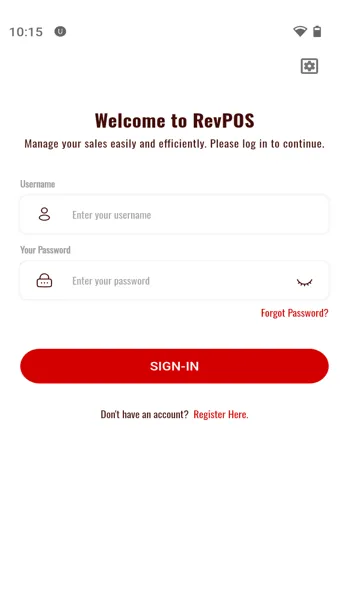
Step 2: Enter User Details
You will be redirected to the sign-up page where you need to enter your credentials.
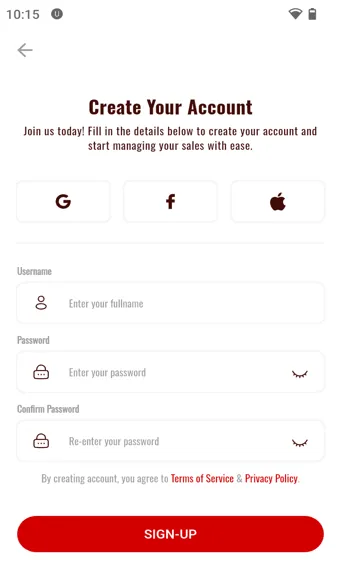
Enter the following information:
- Username
- Choose a unique username for your account
- This will be used to log in to the application
- Password
- Create a strong, secure password
- Remember this password as you’ll need it every time you log in
Step 3: Complete Registration
After entering your details:
- Press the “Sign-up” button
- Wait for the system to create your account
Step 4: Access Home Page
Upon successful user registration, you will be automatically redirected to the REVPOS home page.
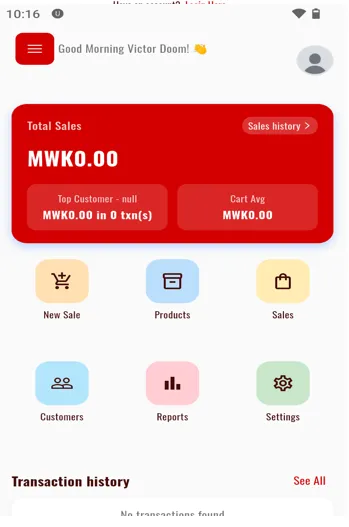
Home Page Overview
The home page provides quick access to key features:
- Sales Button (Yellow) - Start making sales
- Settings Button (Green) - Access terminal configuration and settings
- Bottom Navigation Bar - Quick access to stocks, sales history, and other features
Security Best Practices
Multiple User Accounts
If you need to create additional user accounts for other staff members:
- Log out from the current account
- Return to the sign-in page
- Tap “Register here” again
- Follow the same registration process
Troubleshooting
Username Already Exists
Problem: “Username already taken” error
Solutions:
- Try a different username
- Add numbers or underscores to make it unique
- Check if you or a colleague already registered with that name
Registration Failed
Problem: Account creation fails
Solutions:
- Ensure all required fields are filled
- Check your internet connection
- Verify terminal is properly activated
- Try restarting the app
Can’t Access Home Page
Problem: Registered but stuck on sign-in page
Solutions:
- Try logging in with your new credentials
- Restart the application
- Re-register if necessary
Next Steps
Now that you have successfully registered and accessed the home page, the next critical step is to configure your terminal to receive tax rates and product information from MRA.
Continue to Terminal Configuration (Required Daily)