
Terminal Configuration
Terminal configuration is a critical daily task that must be completed before you begin transacting. This process downloads the latest tax rates, product configurations, and compliance settings from the MRA servers.
Configuration Process
Step 1: Access Settings Dashboard
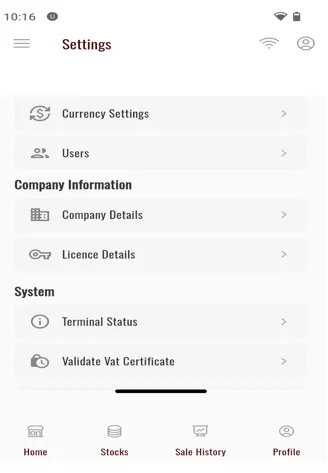
From the home page, press the green settings button to access the settings dashboard.
Step 2: Open Terminal Status
In the settings dashboard, locate and click on the “Terminal Status” button.
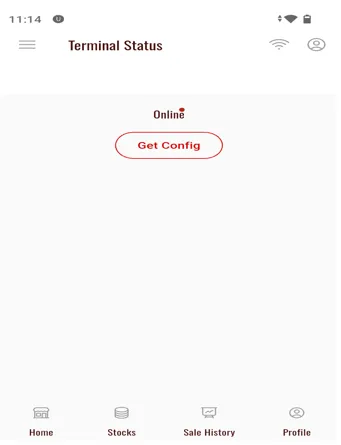
You will be redirected to the Terminal Config page.
Step 3: Get Configuration
On the Terminal Config page:
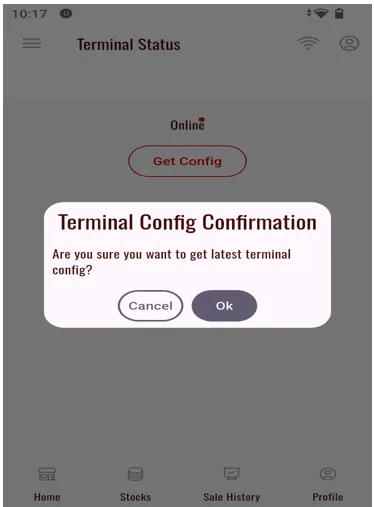
- Press the “Get Config” button
- A confirmation dialog will appear - Press “OK” to proceed
Step 4: Configuration Success
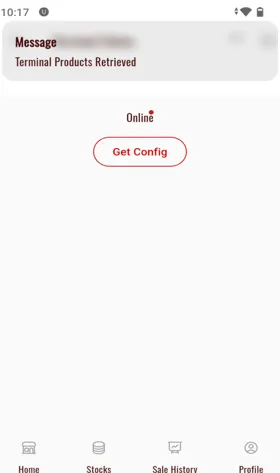
After pressing OK, you will see success notifications:
- “Terminal Products Received” - Confirms stock items have been downloaded
- “Terminal Config Updated Successfully” - Confirms configuration update
Verify Stock Products
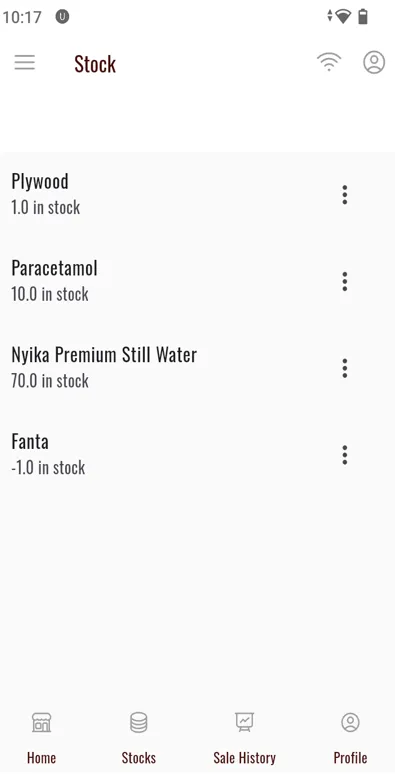
After successful configuration, you can verify that your products were received:
View Stocks
- Press the “Stocks” button on the app’s bottom navigation bar
- You will see all the stocks that were assigned to your terminal in the MRA portal
What Gets Updated?
During terminal configuration, the following information is synchronized:
- Current Tax Rates - Latest VAT and other applicable taxes
- Product Catalog - Items assigned to your terminal
- Pricing Information - Current product prices
- Compliance Rules - MRA regulatory requirements
- System Settings - Terminal-specific configurations
Troubleshooting
Configuration Failed
Problem: “Failed to get config” or timeout errors
Solutions:
- Check your internet connection
- Ensure the device has mobile data or Wi-Fi enabled
- Move to an area with better signal strength
- Try again after a few minutes
- Contact MRA support if issue persists
No Products Received
Problem: Stock list is empty after configuration
Solutions:
- Verify products are assigned to your terminal in the MRA portal
- Log in to the MRA portal and check terminal settings
- Ensure product registration is complete in MRA system
- Try running “Get Config” again
Products Not Updating
Problem: Old products or prices still showing
Solutions:
- Run “Get Config” again
- Check if changes were saved in the MRA portal
- Allow a few minutes for MRA servers to synchronize
- Restart the application and try again
Best Practices
Next Steps
Now that your terminal is configured and you can see your stock products, you’re ready to start making sales!
Quick Reference
| Action | Location | Frequency |
|---|---|---|
| Get Config | Settings → Terminal Status → Get Config | Daily (minimum) |
| View Stocks | Bottom bar → Stocks button | As needed |
| Verify Config | Check success notifications | After each config update |