
Terminal Activation
After granting file permissions, you need to activate your terminal before you can start using REVPOS.
Prerequisites
Before you begin, make sure you have:
- An active internet connection
- Your terminal activation code from the MRA portal
- Completed the MRA portal terminal creation process
Activation Screen
After the initial setup, you will be presented with the terminal activation screen.
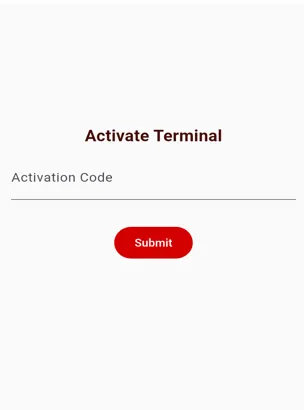
Activation Steps
Step 1: Enter Activation Code
-
Enter the activation code you received from the MRA portal
- This code was generated when you created a terminal in the MRA portal
- Make sure to enter it exactly as shown
-
Verify that your device is connected to the internet
Step 2: Submit for Activation
- Press the Submit button to activate the terminal
- Wait for the system to verify your code with MRA servers
Step 3: Successful Activation
Upon successful terminal activation, you will see a notification message:
“Terminal activated successfully”
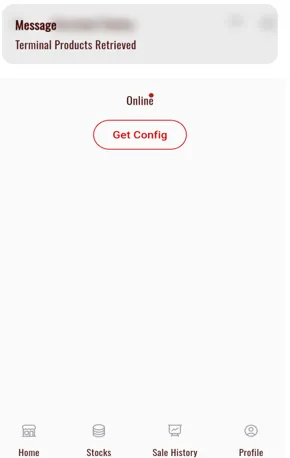
You will then be automatically redirected to the sign-in page.
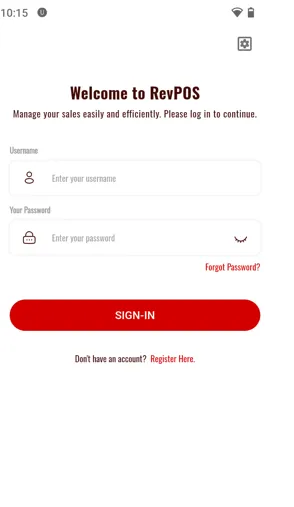
Creating Your Account
After successful activation, you need to register a user account:
- On the sign-in page, locate the “Register here” text
- Tap on “Register here” to proceed to user registration
Continue to User Registration
Troubleshooting
Activation Failed
Problem: “Invalid activation code” or “Activation failed” message
Solutions:
- Double-check your activation code for typos
- Verify the code in your MRA portal account
- Ensure you’re using the correct code for this specific terminal
- Contact MRA support if the code is correct but still failing
No Internet Connection
Problem: Activation times out or shows connection error
Solutions:
- Check your device’s internet connection
- Try switching between Wi-Fi and mobile data
- Move to an area with better signal strength
- Retry activation once connection is stable
Already Activated
Problem: Terminal shows as already activated
Solutions:
- If you’re setting up on the same device, you may not need to reactivate
- For a new device, contact MRA to deactivate the old terminal first
- Check if someone else already activated this terminal
Next Steps
Once your terminal is activated and you see the sign-in page, proceed to create your user account.