
Getting Started with REVPOS
This guide will help you get started with the REVPOS application on your device.
Installation
Make sure the REVPOS app has been installed on your device. Look for the REVPOS icon on your device’s home screen or app drawer.

Opening the Application
- Locate the REVPOS app icon on your device
- Tap on the icon to open the application
First Launch - File Permissions
When you open the app for the first time, you will be presented with a screen requesting permission to access and manage device files.
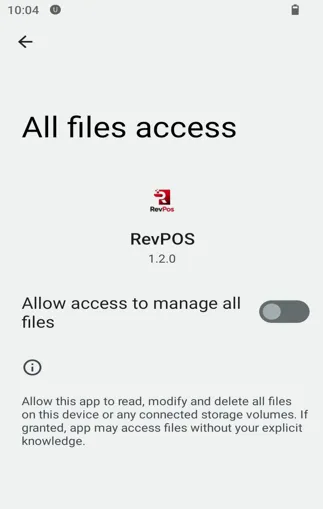
Granting Permissions
- Click on the button to allow file access permissions
- Press the back arrow at the top left corner to proceed to the next step
Next Steps
After granting permissions, you’ll be ready to proceed with terminal activation.
Troubleshooting
App Won’t Open
- Ensure your device meets the minimum requirements
- Try restarting your device
- Reinstall the application if necessary
Permission Denied
- Go to your device’s Settings → Apps → REVPOS → Permissions
- Manually enable Storage permissions
- Restart the app